

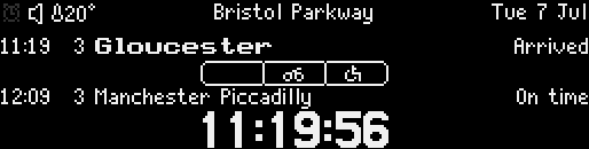

This is one of our most favorite updates we have ever shipped, and if you love the detail of the real railway, you are going to enjoy this one.
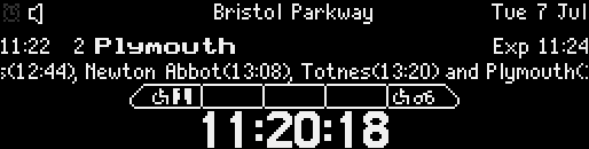
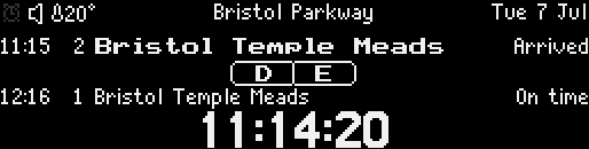
Your UK Departure Board can now show you the full formation of an upcoming passenger service: every carriage laid out in order, with icons indicating exactly where to find disabled spaces, bike storage, first class coaches, catering, and more. Where the data is available, it will also show the individual unit numbers of the rolling stock.
The same formation data the railway uses, now on your board at home.
What Formation Diagrams Show You
When a passenger service appears on your board, the formation diagram displays beneath it: a horizontal layout of every carriage in the train, with facility icons inside each one.
Depending on the service and the feed your board is running, you could see:
- Carriage letters (A, B, C, D, F and so on)
- Disabled access spaces
- Bicycle storage locations
- First class sections
- Catering facilities
- Unit numbers for the rolling stock
The diagram scrolls across the display and cycles through the full formation, so nothing gets cut off even on longer consists. The scroll speed, number of cycles, and cycle duration are all adjustable. You can also select “compact view” if you prefer to see the whole formation on the display at once.





Which Feeds Support Formation Diagrams?
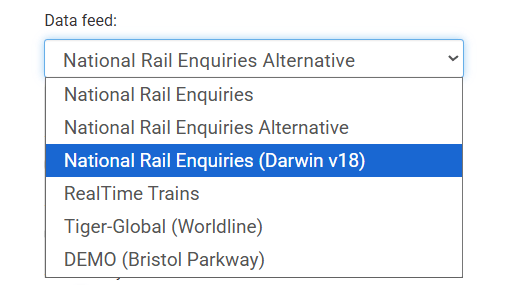
Formation diagrams are available on three feeds: Darwin18, RTTv2, and Tiger.
On Darwin18, the formation data comes from Gemini, which provides detailed consist information including carriage letters and facility icons across a wide range of services. For more on the Darwin18 feed, see our Darwin18 update post.
On RTTv2, the data comes from RealTimeTrains’ Know Your Train system, covering a broad set of UK services with carriage-level detail.
Please note: Only passenger services are supported. Freight services do not support formation diagrams.
If your board is running a different feed, the formation section will not appear. Switching feeds is straightforward in the app settings if you want to try it.
How Configurable Is It?
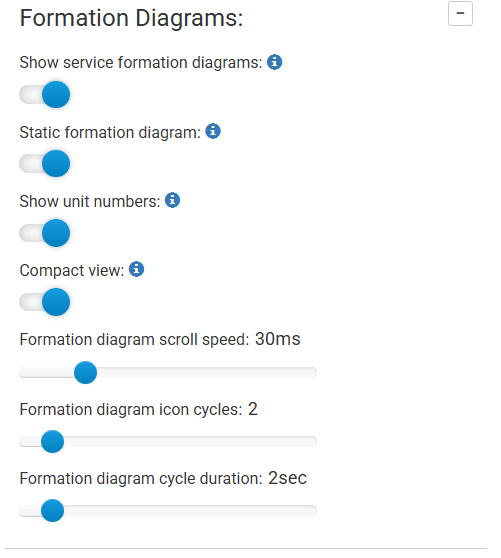
From the Formation Diagrams section in your board settings you can:
- Toggle formation diagrams on or off
- Choose between a live or static formation display
- Choose between full sized formation diagrams or compacted ones.
- Show or hide unit numbers
- Set the scroll speed (default is 30ms)
- Set how many times the icons cycle through the diagram (default is 2)
- Set the duration of each cycle (default is 2 seconds)
You can also customise the colours of every facility icon individually, so the display looks exactly how you want it.
Formation diagrams are a Premium feature. You will need an active Premium subscription to use them. If you are already on Premium, head to your settings and it is ready to go.
Available on All Boards
Formation diagrams work across the entire UKDB range: Desktop Departures®, Classic and Pro. The display adapts to your screen layout automatically, whichever board you are running.
Check Your Firmware First
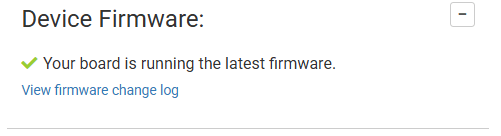
Formation diagrams require the latest board firmware. Before heading into settings, check you are up to date.
Open the UKDB app or web interface, go to the Device tab, and scroll to the Device Firmware section. If it shows a green tick and the message “Your board is running the latest firmware,” you are ready. If an update is available, follow the on-screen prompt to install it.
This is worth doing regardless as the latest firmware also unlocks any other new features released alongside this one.
Frequently Asked Questions
Do I need a Premium subscription to use formation diagrams?
Yes. Formation diagrams are a Premium feature. You can manage your Premium subscription from your account.
Which feeds support formation diagrams?
Formation diagrams are available on the Darwin18, RTTv2, and Tiger feeds. They are not available on other feeds.
Are Freight services supported?
No. Only passenger services are supported.
Where does the formation data come from?
On Darwin18, the data comes from Gemini. On RTTv2, it comes from RealTimeTrains’ Know Your Train system.
Some services don’t show icons or letters?
We can only show the service formation data we receive from the various feeds. Sometimes it can be a little complete.
Does it work on all UKDB boards?
Yes. Formation diagrams are available on the Classic, Desktop Departures®, and Pro boards.
Can I customise how the diagrams look?
Yes. You can adjust scroll speed, cycle count, cycle duration, and the colour of every individual facility icon from the Formation Diagrams section in your board settings.
What do I do if no formation diagram is appearing?
Check that you are on the Darwin18, RTTv2, or Tiger feed, that your firmware is up to date via the Device tab in the app, and that formation diagrams are toggled on in your settings. If you are still having trouble, our technical support pages cover the most common setup issues.
Do I need to do anything to set this up?
Update your firmware via the Device tab, then go to your board settings, find the Formation Diagrams section, and toggle it on. Everything else is optional configuration.
How to Enable Formation Diagrams
- Update your firmware via the Device tab in the UKDB app
- Open your board settings our app or browser config
- Find the Formation Diagrams section under the rail tab
- Toggle “Show service formation diagrams” on
- Adjust scroll speed, cycle count, and duration to your preference
- Save your settings
For more help with feeds and setup, visit our FAQ For app setup help, take a look at the UKDB app guide.
Formation diagrams are live now. Go and take a look.